

Thankfully, there are a few simple tricks you can try to make your device feel as good as new every single time you use it.
AOL has shared 14 hacks to try to help your Amazon Fire TV Stick run like new again so you don’t have to fork out for another.
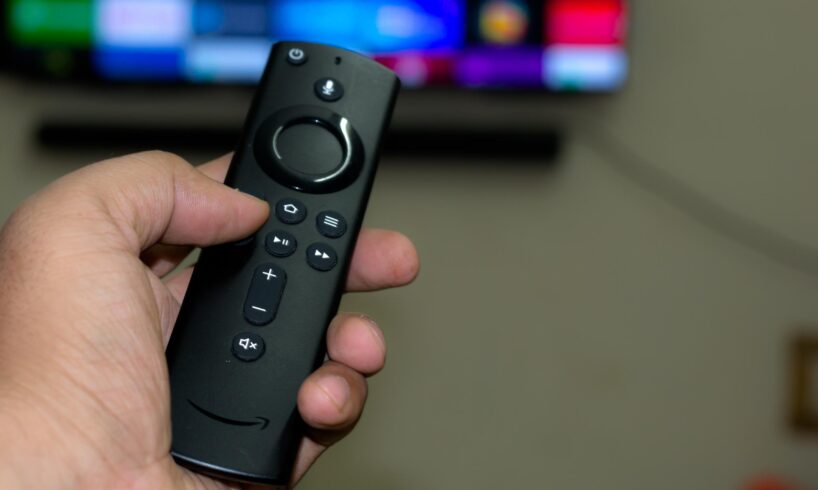
14 ways to make your Amazon Fire TV Stick run like new… so you don’t have to fork out for a new one (Image: PA)
A simple restart can take care of things
The first tip suggested to increase the efficiency of your Fire Stick is to restart it. This is because as you open more and more apps on the device, it can slow it down and cause it to lag.
You should restart your Fire Stick from time to time to help it run faster than ever.
2. Update you fire stick
Another way to give your Fire Stick an upgrade is to make sure you’re up to date with software on the machine. By doing so, it can help your stick feel like a brand-new purchase without having to resort to actually buying one.
3. Turn off the Fire TV’s data tracking to improve performance
If your Fire Stick is lagging for no reason, turning off the data tracking tools may help you out and it’s very easy to do. To turn these settings off, head to the privacy settings under the preferences section in settings on your machine. Here, you can disable device usage data.
4. Don’t flood your Fire TV Stick with too many apps
While it might seem tempting to download every app when you first get your Fire Stick, you need to check the amount of space on your device to make sure it can accommodate all of these.
By filling your Fire Stick to the brim with apps, it might cause it to start slowing down at points. To stop this from happening, check what apps are on your device every so often and delete any you no longer want or need.
5. Clear the cache of heavy-duty apps regularly
As well as deleting unwanted apps off your Amazon Fire TV Stick, you should also check the size of the caches on each app. Over time, your apps build a cache that stores data and helps it run smoothly. But when a cache gets too big, it can take up too much space on your Fire Stick.
To combat this, your best bet is to delete the app’s unoptimized cache and start fresh.
6. Turn of your Fire TV Stick’s notifications
Not only can pop-up notifications be annoying on your device when you’re trying to watch something, they can also end up using system resources which can slow down a Fire Stick.
You can alter what notifications you get on your Fire Stick under notification settings in your settings on the device.
7. Force stop apps to free up the Fire Tv Stick’s RAM
2GB RAM is far from enough for any device, including a Fire TV Stick and with lots of apps running at once, it won’t take long before your Fire Stick’s RAM starts struggling to run all these apps when left active for an extended period of time.
To solve this, head to your device’s settings and from the Manage Installed Applications section you can choose any active apps and force stop them. In the long run this will help your device feel like it is more responsive and working faster.
8. Turn of Audio and Video Autoplay
To speed up your Fire TV Stick and stop any promotional content from auto-playing, turn this off in your settings.
This will help with your device’s performance as the auto-played content is taking its toll on your Fire Stick’s hardware which can make it lag or slow down.
9. Disable Amazon Photos if you don’t use it
Amazon Photos is an additional feature pre-installed on your Fire Stick. While it cannot be deleted from your device, you can prevent the app’s processing power in the settings.
10. Make sure your Fire TV Stick isn’t heating up too much
Overheating is a major reason your Stick might have slowed down. To avoid your TV transferring any heat over to your Fire Stick, plug your device into the correct HDMI port. This is one that is on the side or front of your TV to prevent it from overheating.
11. Double-check the Fire TV Stick’s power source
All Fire Sticks come with a power cable and an adapter. While you may discard the adapter and use your TV’s USB port or something similar, this may not provide the amount of power needed to smoothly operate the Fire Stick and make your device slow down.
To solve this, use a trusted adapter and charging cable for your Fire Stick.
12. Get an ethernet adapter for faster internet speeds
Sometimes buffering or slow loading on your Fire TV Stick might not be the device’s fault and instead your internet might be the issue.
Buying an Ethernet cable can help with this as they operate faster than wireless signals helping to make your Fire Stick’s streaming experience smoother by using a wired connection.
13. Turn of data monitoring can help
The Fire TV Stick allows you to monitor the amount of data used on the device. While this is a great tracking tool, if you have a limited internet connection all this feature does is eat into valuable processor power.
To disable this setting head to your device settings and turn it off.
14. If everything else fails, a factory reset can help you out.
If you’ve tried every other hack and nothing seems to help boast the speed or performance of your Fire Stick, taking it back to basics can help. By completing a factory reset and restoring your device to its default settings, it may help to get your Stick working as intended.