

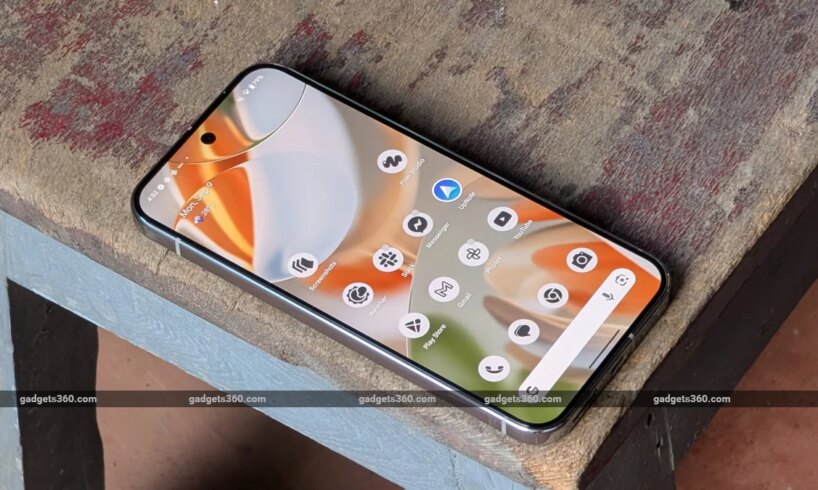
Google recently started rolling out the first beta version of the Android 17 update for select Pixel devices. Available for Google Pixel phones and a tablet, the Mountain View-based tech conglomerate requires you to enrol your device in Google’s Android Beta Programme to receive the same. Starting from the Pixel 6 series, the beta update is available for the latest Pixel 10 lineup and select Pixel A series phones. Hence, if you own one of the devices in the list, you can test out the new features yourself. With this, you can help the company iron out the reported bugs in the OS and experience the changes in the user interface design.
Here is a step-by-step guide for you to help you get the latest Android 17 Beta 1 update, before it is officially rolled out to a wider user base.
Android 17 Beta 1: Eligible Pixel Devices
The list of devices that are eligible to receive the new Android 17 Beta 1 update includes:
How to Enrol in the Android Beta Programme
Before you enrol your Pixel smartphone, you should note that the Android 17 beta updates your phone receive in the future may contain bugs, errors, and issues that might affect your day-to-day device usage and functioning. Moreover, your device cannot be unenroled and reverted to a stable public version of a previous Android version without wiping the locally saved data on your Google Pixel phone or tablet. You can follow the steps mentioned below to enrol your device in the Android Beta Programme:
Visit the Android Beta Programme website or click here. Sign in to your Google account with which one of the eligible devices mentioned above is linked. Select your device from the list on the website. Now, you can opt into Google’s Android Beta Programme.
How to Download and Install Android 17 on Your Google Pixel Device
Once your device has been enroled, you will automatically start receiving Android 17 beta OTA updates on your registered Pixel device. Open Settings on your phone > navigate to the System menu. Then, click on the Software Update button. Tap on the Download and Install button. After the download is complete, your device might restart a couple of times during the installation process.
Android 17 Features (Expected)
As previously mentioned, Google recently started rolling out the Android 17 Beta 1 update. The company said that the new Android version focuses on enhancing performance, while also offering a smoother user experience. Moreover, it brings improvements in the task management and power efficiency departments. Android 17 Beta 1 update also allows apps to run efficiently, improving the multitasking experience.
Moreover, the Android 17 beta version refines permission management to offer clearer visibility to users into how apps are accessing their sensitive data, including location, microphone, and camera feed. It also introduces the Versatile Video Coding (VVC) standard and audio framework restrictions on background audio interactions. Google has also introduced subtle design changes to the UI to offer smoother system animations. The notifications window and quick settings animations also been refined.
FAQs
1. Which devices are eligible to receive the Android 17 Beta 1 update?
You can download and install the Android 17 Beta 1 update on the Google Pixel 6 series to the Pixel 10 series smartphone and on the Google Pixel Tablet.
2. Can I switch back to a stable version of Android after downloading the Android 17 beta?
Yes, you can reset your Google Pixel device to switch to a stable version of Android. However, you might lose your data in the process if you do not create a backup of the same on an external device.
3. How often will I receive Android 17 beta updates?
Google says that you can expect to receive four OTA updates in a month.